Set up in about 2 minutes

How Pounce connects to your computer

Pounce doesn't run your agents in the cloud — it's a remote control for the coding agents already running on your own machine. You install a tiny free Bridge app on your computer, scan one QR code with your phone, and you're paired.

No account. No Pounce server in the middle. Your code and conversations stay on your devices.

🖥️

A computer

Your Mac, Windows, or Linux machine running coding agents like Claude, Codex, or opencode — with the free Pounce Bridge installed.

📱

The Pounce app

On your iPhone or Android. It's the remote — it shows every agent and lets you steer them.

📶

A network path

Same Wi-Fi is easiest. Remote? Point the Bridge through a tunnel (Tailscale, ngrok) and pair the same way.

1

Run the Bridge on your computer

Download the free Pounce Bridge for Mac, Windows, or Linux and open it. It lives in your menu bar / system tray and automatically hosts the coding agents running on that machine — no terminal, no config files.

💡  The Bridge is what your phone talks to. Keep it running while you want remote access — quit it any time to go fully offline.
Pounce
🐾

Pounce

Hosting the agents on this Mac

Running · 3 agents online
CClaudeclaude-code · ready
CxCodexcodex · ready
Ocopencodeopencode · ready
2

A pairing code appears

The Bridge shows a QR code and the address it's listening on. This is the handshake — it carries the machine's address and a private, per-machine token so only your phone can connect.

🔒  The token never leaves your network. Pairing once is enough; Pounce remembers the machine so you can reach it again later.
Pounce
🐾

Pounce

Scan with your iPhone to connect

Pounce pairing QR code
http://192.168.1.6:8099
Waiting for your phone…

Open Pounce on your phone → Sync → Scan this code.

3

Scan it with Pounce

Open Pounce on your phone, tap Sync a device, and point the camera at the code. That's the entire setup — no typing addresses, no copying tokens.

📷  You can also scan with the built-in iPhone Camera app — it opens Pounce straight to the pairing screen.
Sync a device
Point at the code in the Bridge window
Scanning the pairing QR
Pairing with 192.168.1.6
4

You're connected

Your machine's sessions sync instantly. Every coding agent, across every computer you've paired, shows up in one list — with the ones that need your input first.
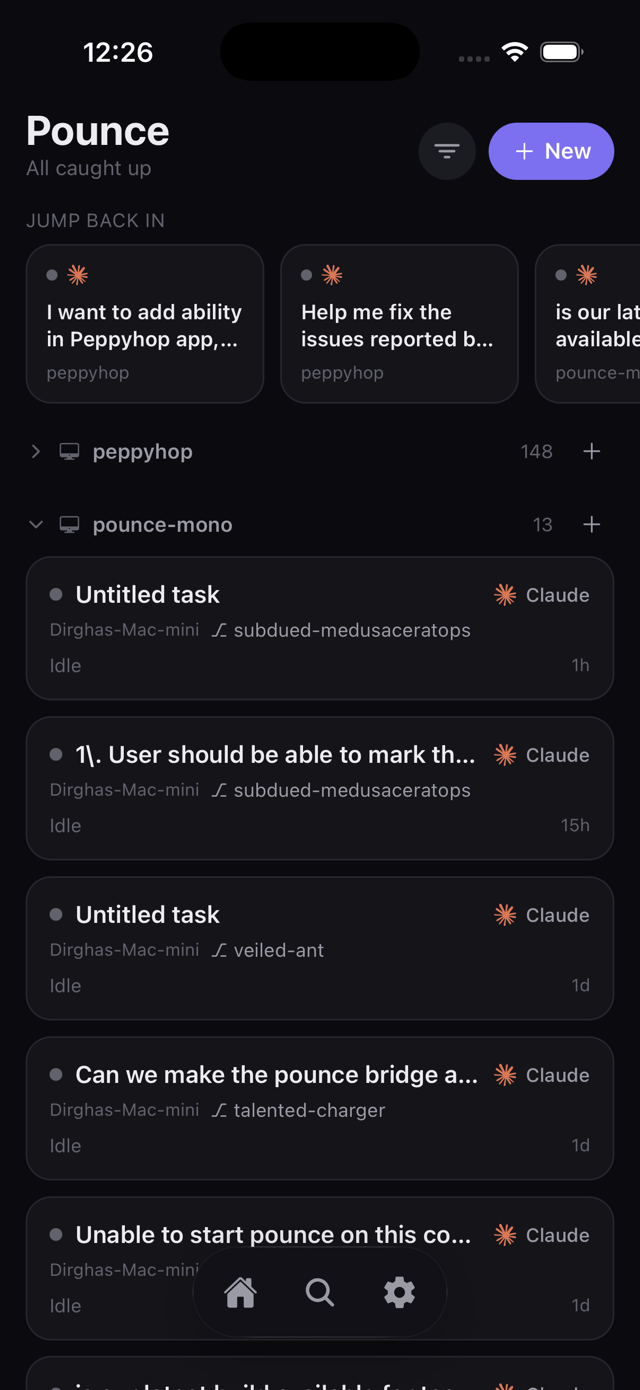
🐾  Pair more machines the same way. They all live in the same fleet — filter by device or agent and jump between them.
Pounce home — every coding agent across all your machines, on one screen
Once you're paired

Run the whole loop from your phone

Watch agents work live, jump in by voice, review the diff, and ship — without going back to your desk.

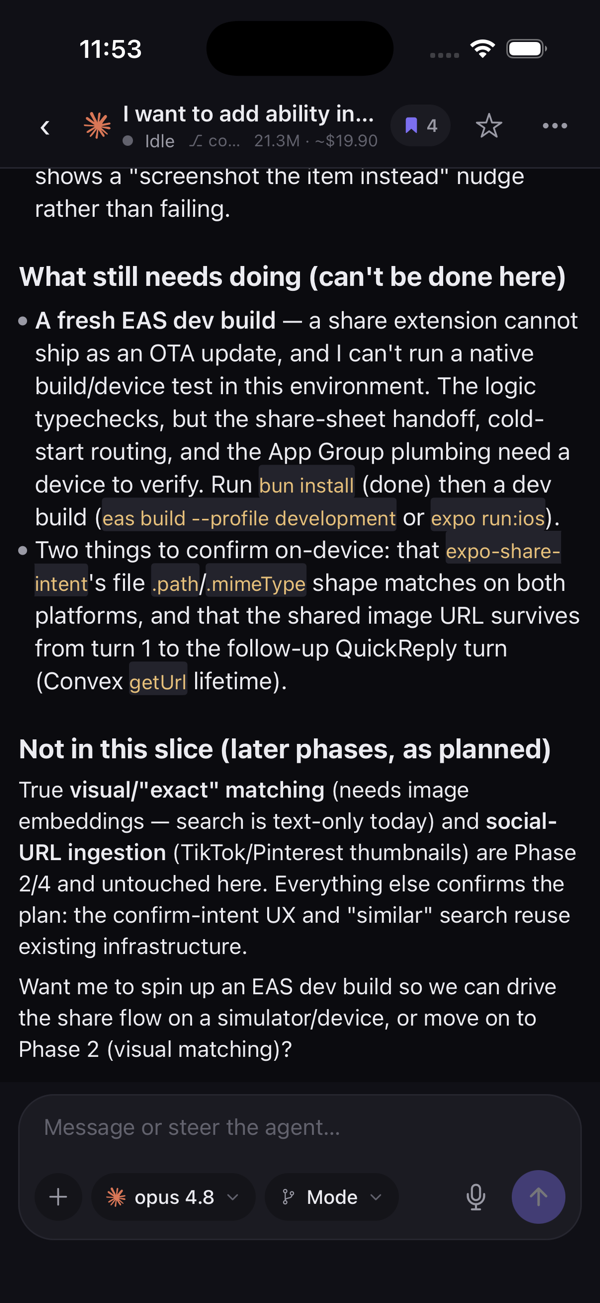
Live agent session streaming in real time
Watch it work. Reasoning, tools & terminal, live.
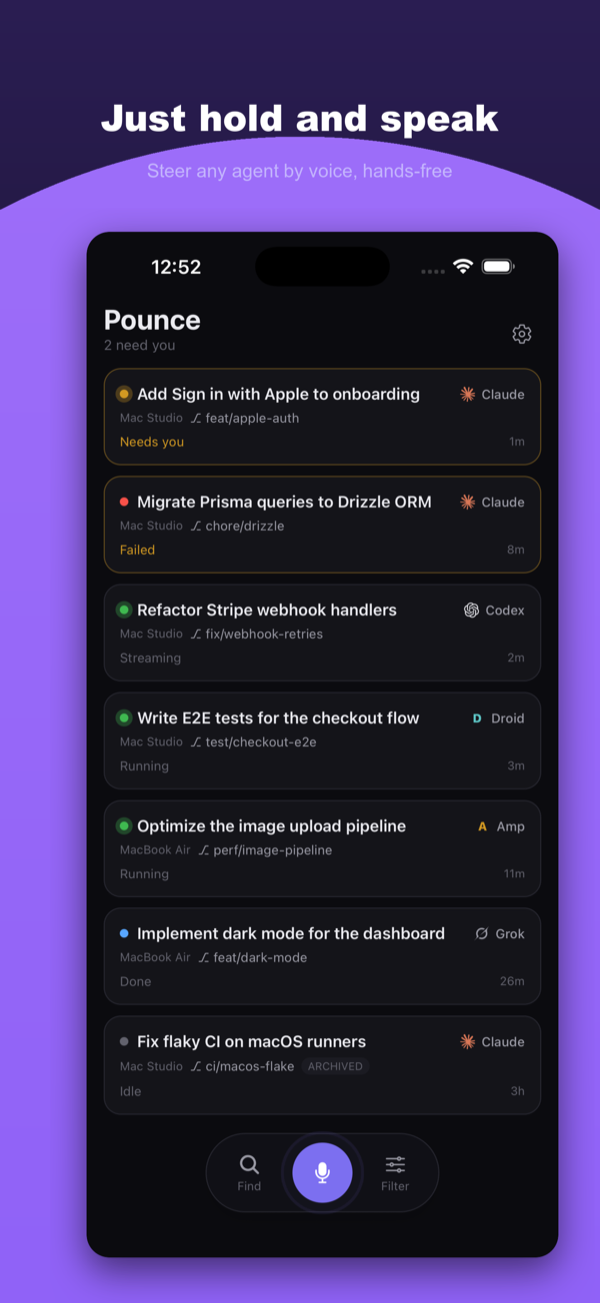
Hold to talk to steer an agent by voice
Hold to talk. Steer any agent hands-free.
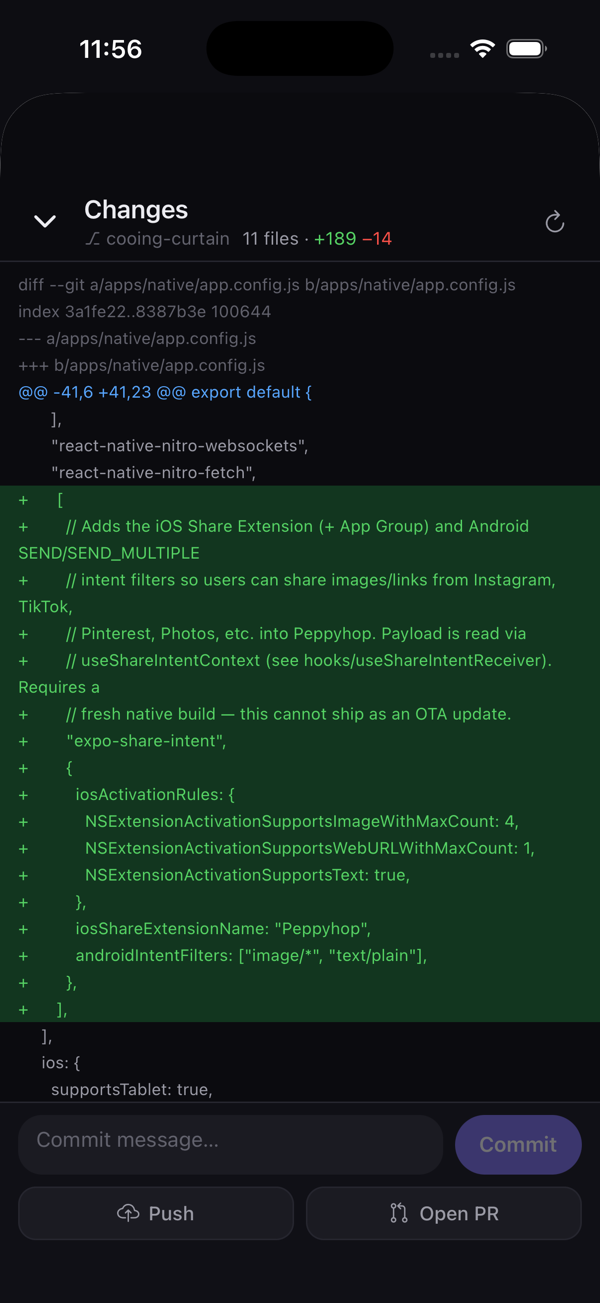
Review the diff and open a PR from your phone
Review & ship. Commit, push, open a PR.
Where your data goes

A direct line to your own machine

Nothing is routed through a Pounce server. The app talks straight to the Bridge on your computer, which talks to the agents running there.

📱
Pounce app
Your phone — the remote
🐾
The Bridge
Runs on your computer
🤖
Your agents
Claude · Codex · opencode

No Pounce cloud. Your code, diffs and conversations never pass through us — read the privacy policy.

Good to know

Common questions

Don't have the phone app yet?

iOS & Android are in private beta — public launch is coming soon. Grab the free Mac Bridge now so you're ready on day one.

Phone and computer on different networks?

Expose the Bridge through a tunnel — Tailscale, ngrok, or a Cloudflare tunnel — and scan the same QR. Pounce connects to whatever address the Bridge advertises.

Is the connection secure?

Each machine pairs with its own private token, and the production path uses a direct peer-to-peer identity to reach home. There's no shared cloud inbox for your sessions.

What can it actually do?

Stream every agent live, reply or redirect by voice, approve permission prompts, and review diffs — then commit, push, or open a PR, all from the phone.

Ready to set it up?

Install the free Desktop Bridge — macOS, Windows, or Linux — then scan once. You'll be steering your agents from your pocket in about two minutes.